


A guide to using Skype, Zoom and FaceTime for Telehealth consultations
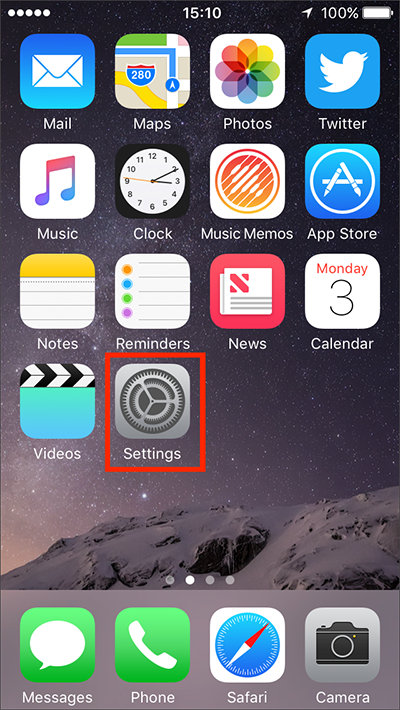
- 1. Click on the ‘Settings’ app
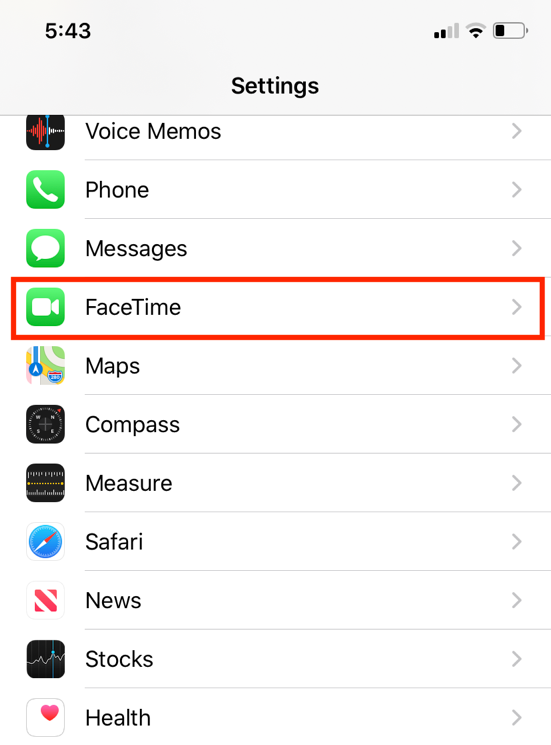
- 2. Scroll down to ‘FaceTime’
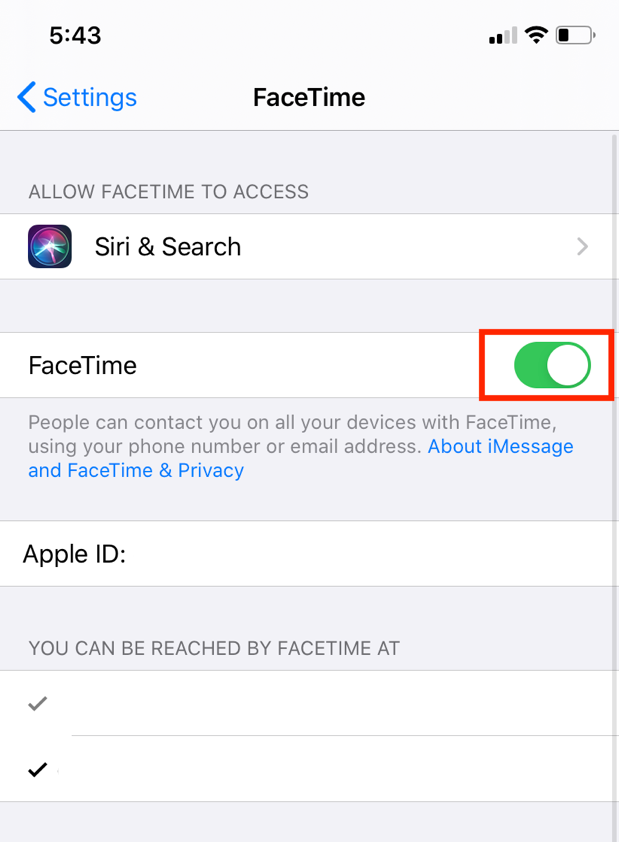
- 3. Make sure the toggle is green
- 4. Be ready to answer our call
We will contact you, so all you need to do is answer our FaceTime call as you would a regular phone call.
FaceTime is the easiest option if you and your physiotherapist both have iPhones. We will contact via your mobile number.
First, you should make sure that FaceTime is available in your settings.
- 1. Click on the ‘Settings’ app
- 2. Scroll down to ‘FaceTime’
- 3. Make sure the toggle is green
- 4. Be ready to answer our call
We will contact you, so all you need to do is answer our FaceTime call as you would a regular phone call.
1. Create a Skype account
Visit Skype’s website, click the dropdown menu next to Sign in and click Sign up. Go through the prompts to create an account using either your mobile number or email address.

2. Test audio
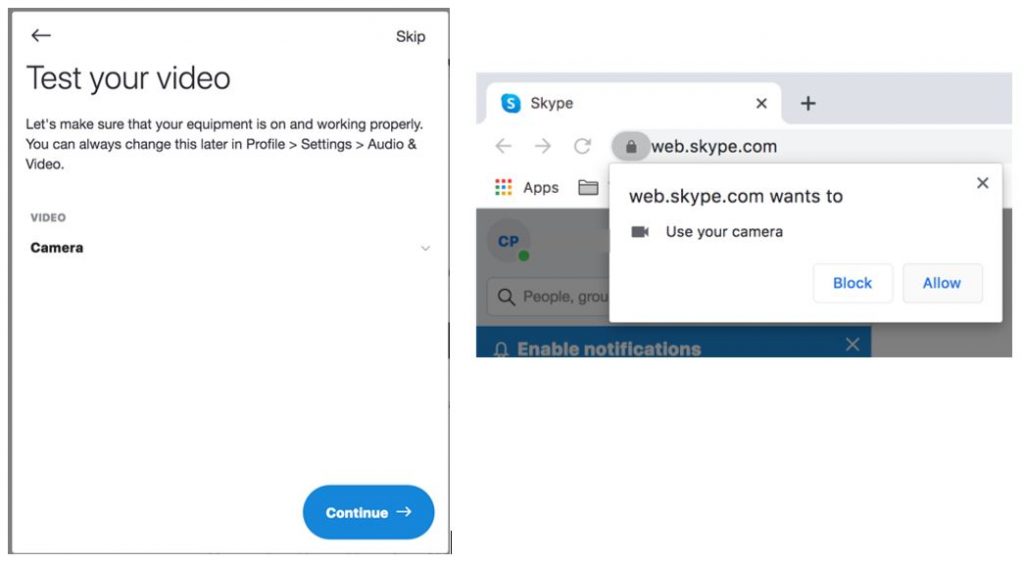
Once you have created an account, a prompt to test your audio will automatically appear. Your built-in microphone and speakers will likely be set to default (however you can change these by clicking on the dropdown arrow). Press Continue once you’re done.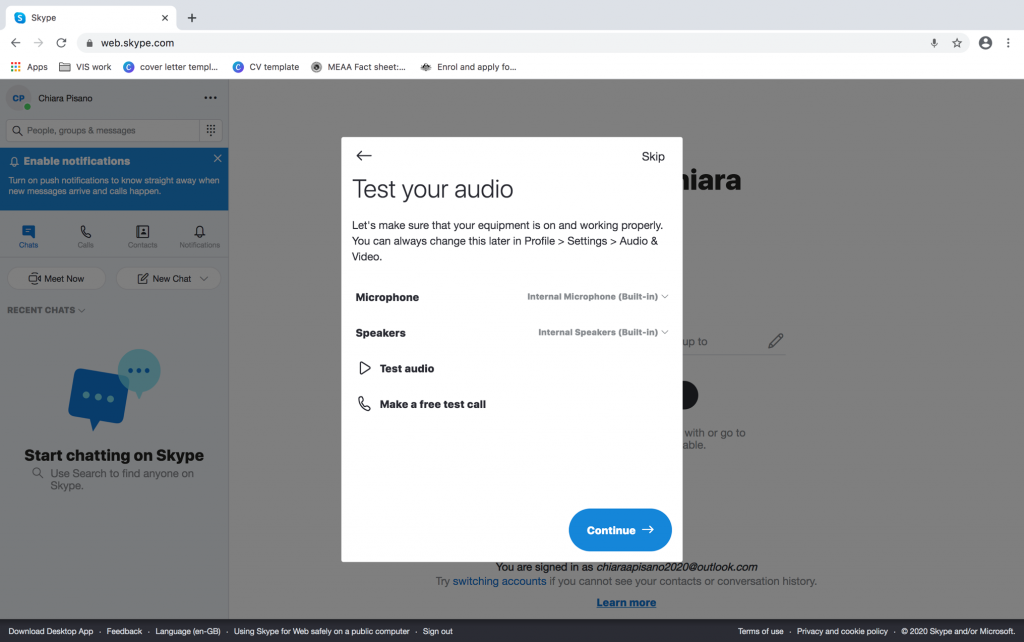
3. Test video
Next, a prompt to test your video will automatically appear. A pop-up box should also appear asking for permission to use your camera. Press Allow.
If this does not appear automatically, you can always set it up later by clicking Profile > Settings > Audio & Video
Once done, click Continue.
You can choose to use Skype online or download the app to your computer or smartphone.
4. Use Skype online
To use Skype online, simply visit here, click Sign in, then Use Skype online. Follow the prompts to sign in.

5. Downloading Skype on your phone
Visit the app store, search for Skype and follow the prompts to download and log in.
6. Download the Skype app on your computer
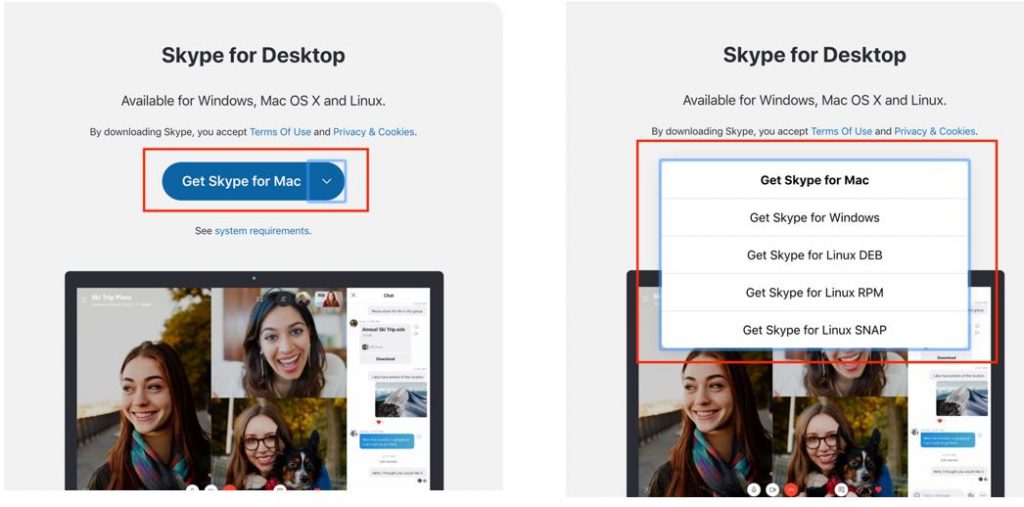
Visit here and click Download Skype.

7. Select your operating system
Select this dropdown menu to download the app for either Mac or Windows.
8. Continue downloading
Navigate the Downloads file on your computer and follow the prompts to finish the download.
9. Give us your Skype ID
We will add you on Skype by searching either your name or email address.
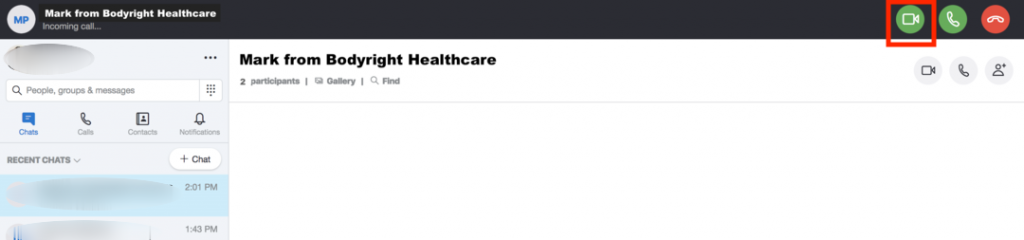
10. Sign in and be ready to answer our call
Our incoming call will appear at the top of the page. Be sure to answer our call in video mode by clicking on the green camera icon.
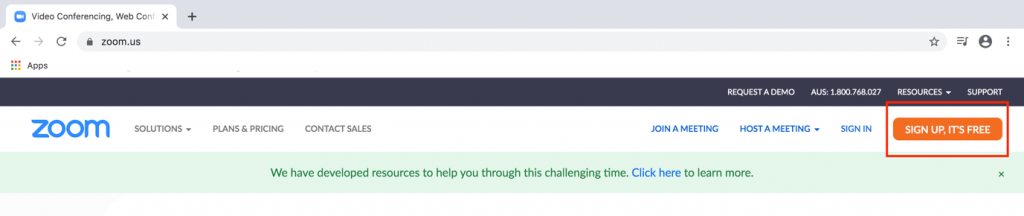
1. Create a Zoom account
Visit Zoom’s website and click Sign Up, It’s Free in the top right-hand corner.
Sign up using either your email address, Google account or Facebook account. Follow the prompts to fill in your DOB.
2. Activate your account
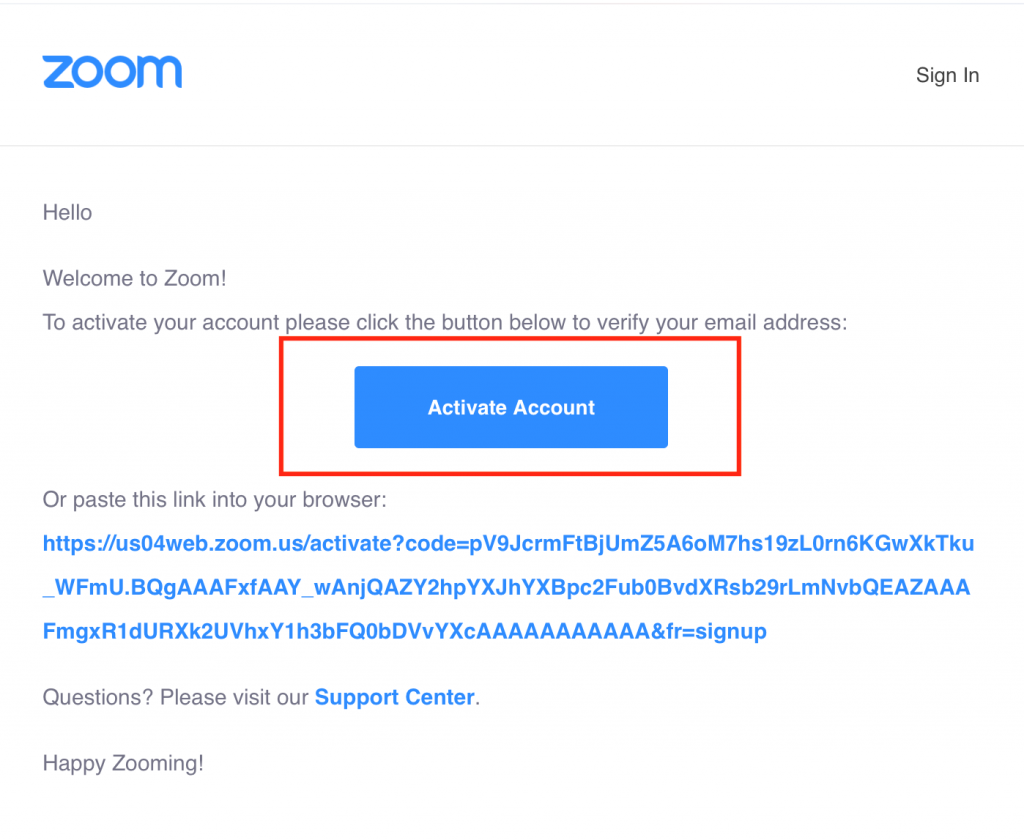
Check your emails – Zoom will send you an email to activate your account. Press Activate Now.
3. Make a password
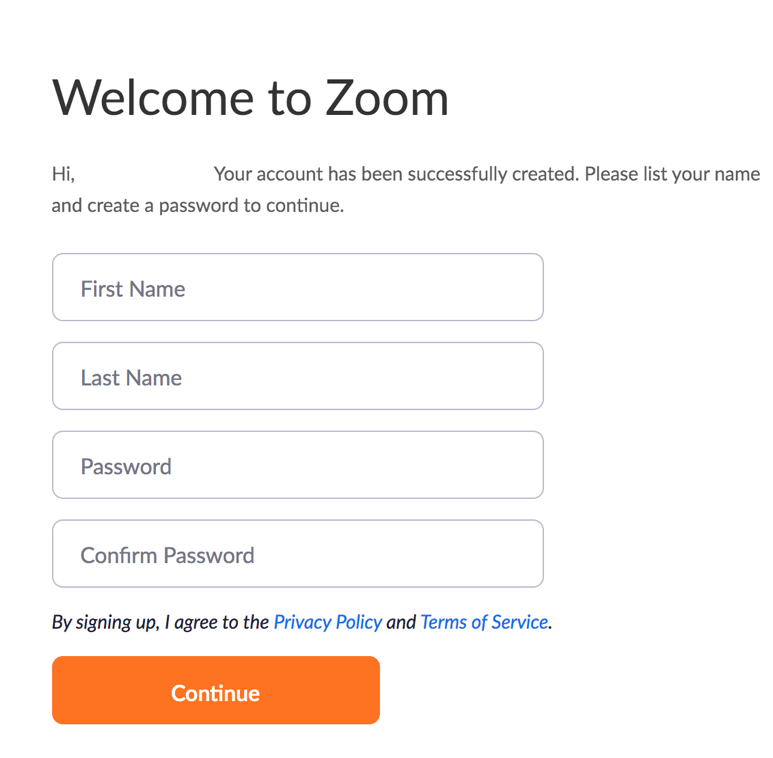
You will be redirect back to Zoom’s website. Fill in your name and password, then click Continue.
4. Download Zoom
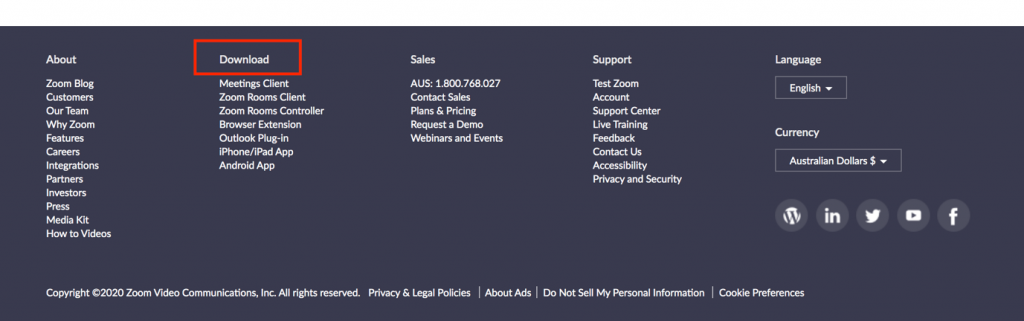
Scroll down to the bottom of the page, click Download and follow the prompts. Navigate the Downloads file on your computer to finish.
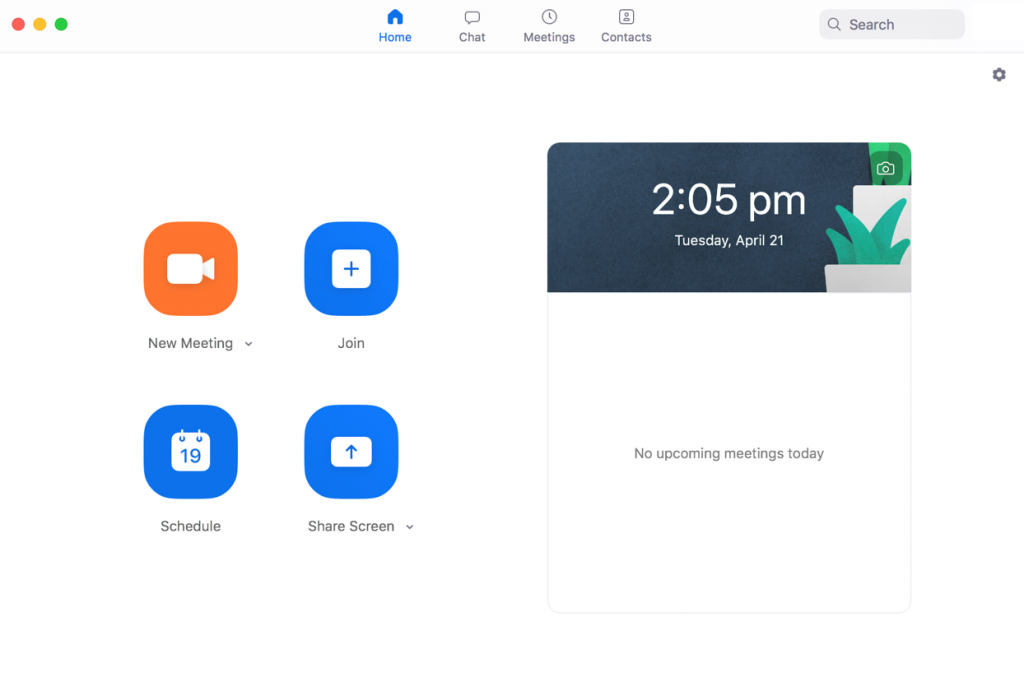
Here is what the Zoom app looks like on your computer.
5. Check your emails
We will send you an email with a link to the consultation (which will direct you to the Zoom app on your computer). If it asks for permission to use your camera and microphone, press Allow.